

THE CHALLENGE
Unlock your creativity with these comprehensive Adobe Illustrator tutorials designed for beginners and intermediate users alike! Learn the essentials of vector graphic design, from understanding the workspace and tools to creating stunning illustrations, logos, and digital artwork. All of these easy-to-follow, step-by-step guide includes tips, tricks, and pro techniques to help you bring your artistic vision to life. Whether you’re designing for personal projects, branding, or professional work, this tutorial will give you the confidence to make your ideas a reality in Adobe Illustrator.
Let your creativity shine—start designing today and learn the first three modules below!
DELIVERABLES:
- For each exercise/ module, please submit your Illustrator file and a PNG of your image.
- Follow proper naming convention: LAST NAME – FIRST NAME – MODULE-000
MODULE 01: POTTED PLANTS
In this lesson, Students will create three POTTED PLANTS using the tutorial below. Students will learn the basic tools of Illustrator to create these Flat objects. Included is the video tutorial below to help you out.
VIDEO TUTORIAL:
MODULE 02: WATER DROPLET
VIDEO TUTORIAL:
In this lesson, Students will create a water droplet logo styled image. This tutorial will show you how to use the Divide Tool in Adobe Illustrator.” The Divide Tool is typically used to split overlapping shapes into separate pieces, which can then be independently edited or customized.
MODULE 03: FLAT TREE SHADE
The video “How to Make a Gradient Shape in Adobe Illustrator” by Pixel & Bracket demonstrates how to create and apply gradients to shapes in Adobe Illustrator. The tutorial helps you enhance your designs by integrating smooth color transitions into your shapes.
VIDEO TUTORIAL:
ASSIGNMENT 001: PIZZA SLICE
Task: Download the pizza slice drawing and create your own pizza slide using the drawing.
RESOURCES: Below you will find the tutorial video to help you get started.
VIDEO TUTORIAL:
Submit: A ILLUSTRATOR VECTOR FILE and a PNG file of your final work.
Follow proper naming convention: FIRST NAME – LAST NAME – PIZZA SLICE
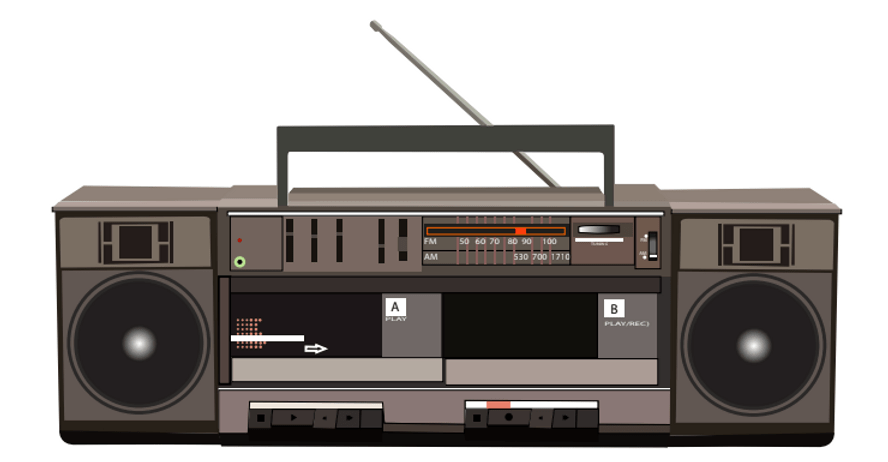
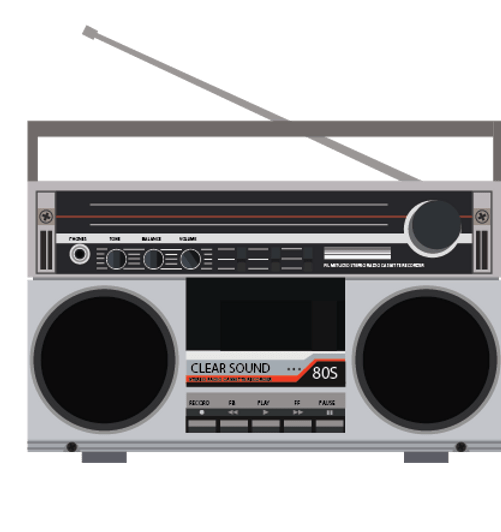
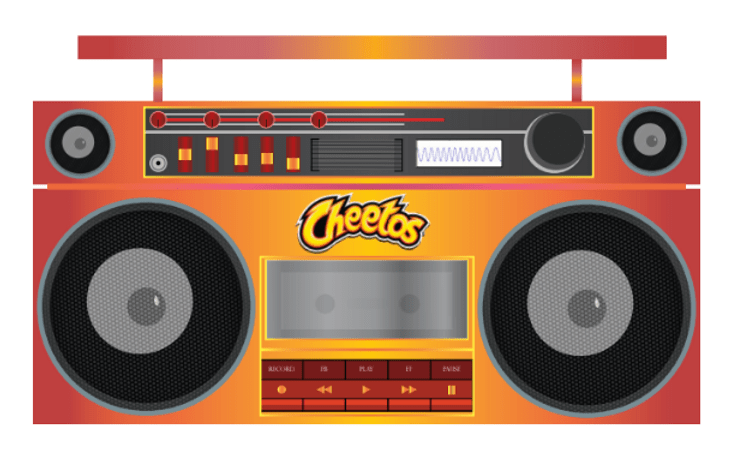
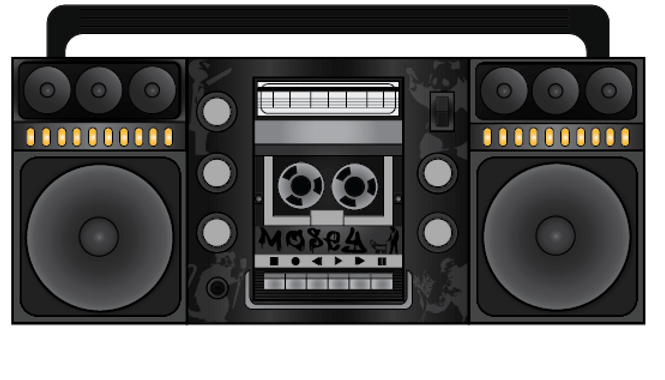
ASSIGNMENT 002: BOOM BOX
STUDENT EXAMPLES


VIDEO TUTORIAL:
ASSESSMENT
| Application ALL Four parts are very detailed;Image resembles a boombox with artistic modification. A good amount of multiple image shapes are used. A good amount of shapes are created to outline the boombox. |
| Knowledge Boombox has all four parts (2 speakers, center console, top handle)Boombox has at least 1 gradientBoombox has at least 1 clipping pathBoombox has all buttons (Play / Pause / Rewind / Fast Forward / Stop / Eject)Boombox is assembled with each part butted up against each other Good use of techniques used to create the boombox. A good amount of technique to achieve depth, light, and shadows to create a vector approach. |
| Thinking A good amount of evidence gathered from various sources to help with the final boombox creation. It is clear that evidence from research supports the content in the final image. There are few or no black lines and glitches in the final image. |
| Communication The final product is easy to find and labeled correctly. Continually review project expectations guidelines to ensure the final product meets the criteria, & conveys info in an effective, visually appealing, creative & original manner. Correct naming convention is used. |
ASSIGNMENT 003: VECTOR PORTRAITS
STUDENT EXAMPLES
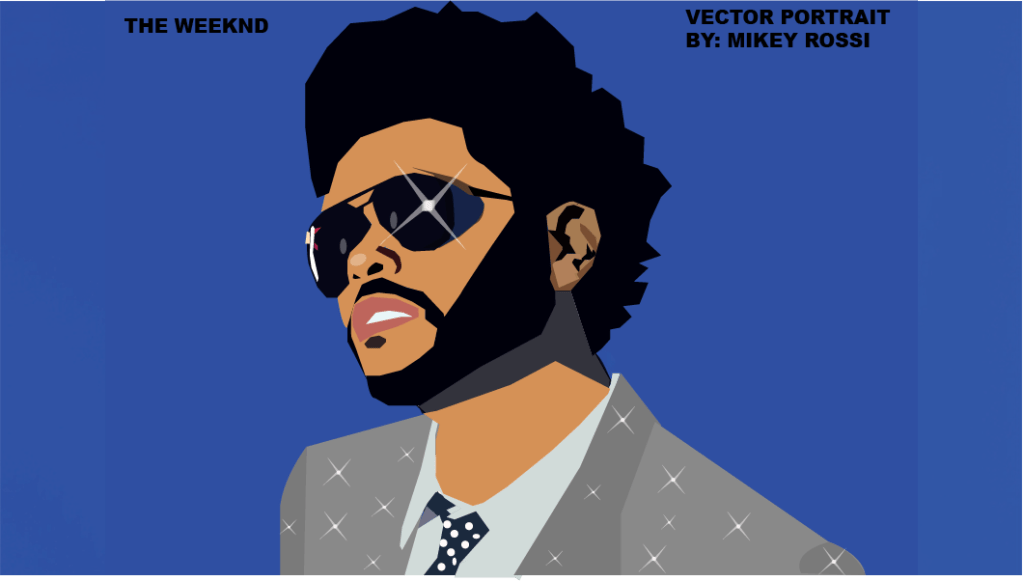
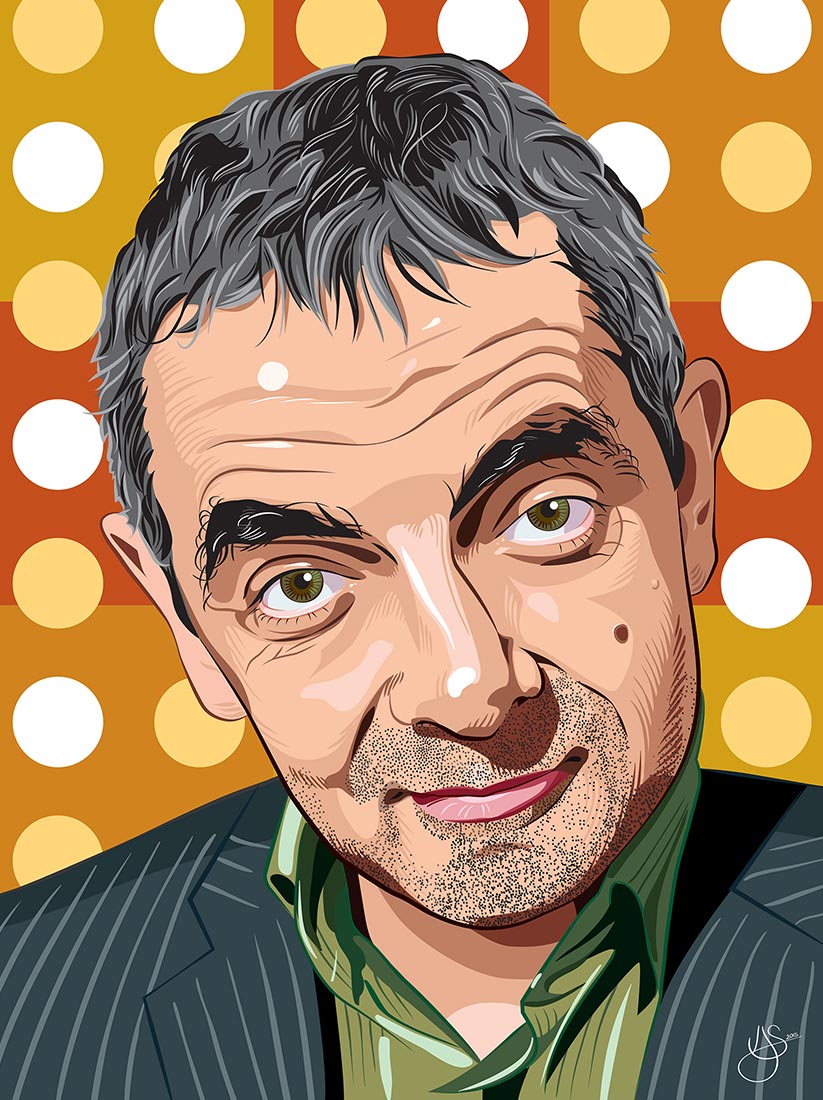

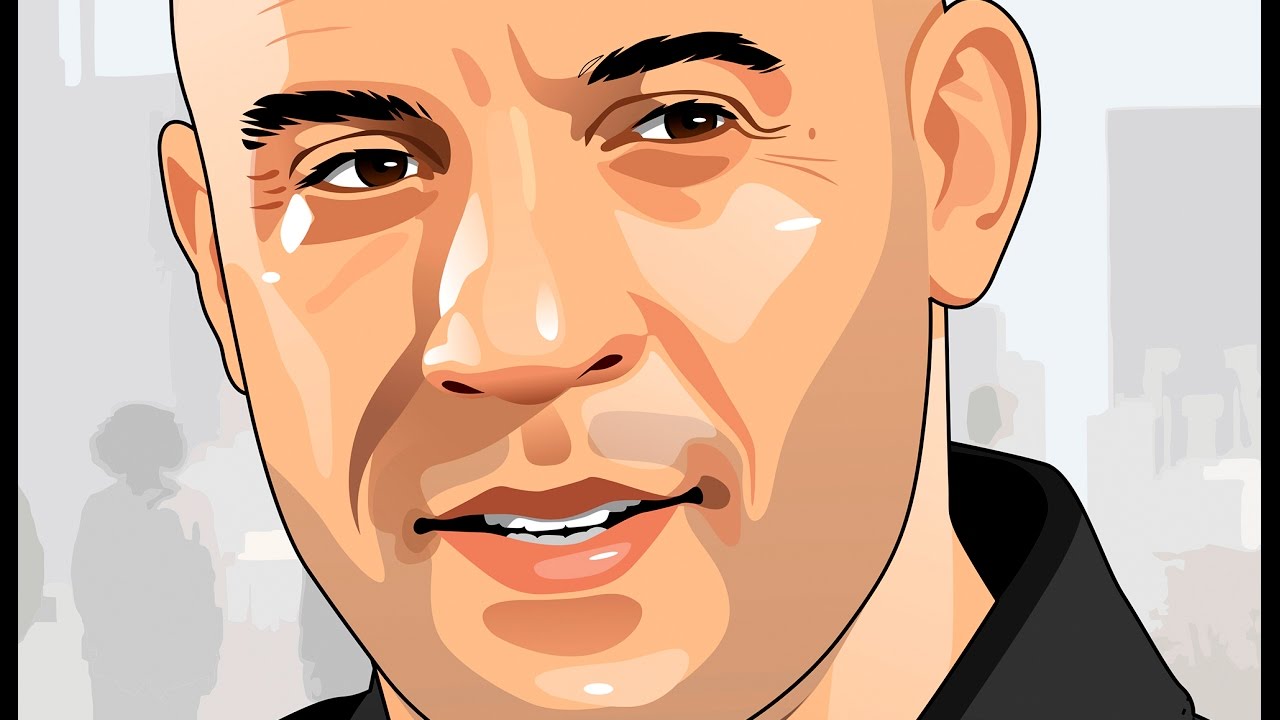
BEFORE YOU START:
- Choose your image of a person or a place or thing. You can also take your own image using a camera.
- Obtain permission from Mr. Remedios first before starting. That means showing him the digital photo that you will use in illustrator.
- Once approved, begin your illustration.
VIDEO TUTORIAL: 001
VIDEO TUTORIAL: 002
ASSESSMENT
You will be marked on…
- How accurate to the final image is your illustrator file.
- Your Groupings and naming of each layer within your illustrator file.
- Accuracy of color from the original image.
- The Detail of your image.
- You must use the pen tool to create the vector shapes in the image.
- Your vector shapes must be coloured in.
- You are not allowed to use the live trace.
 Remtech Studio